Appearance
Getting Started
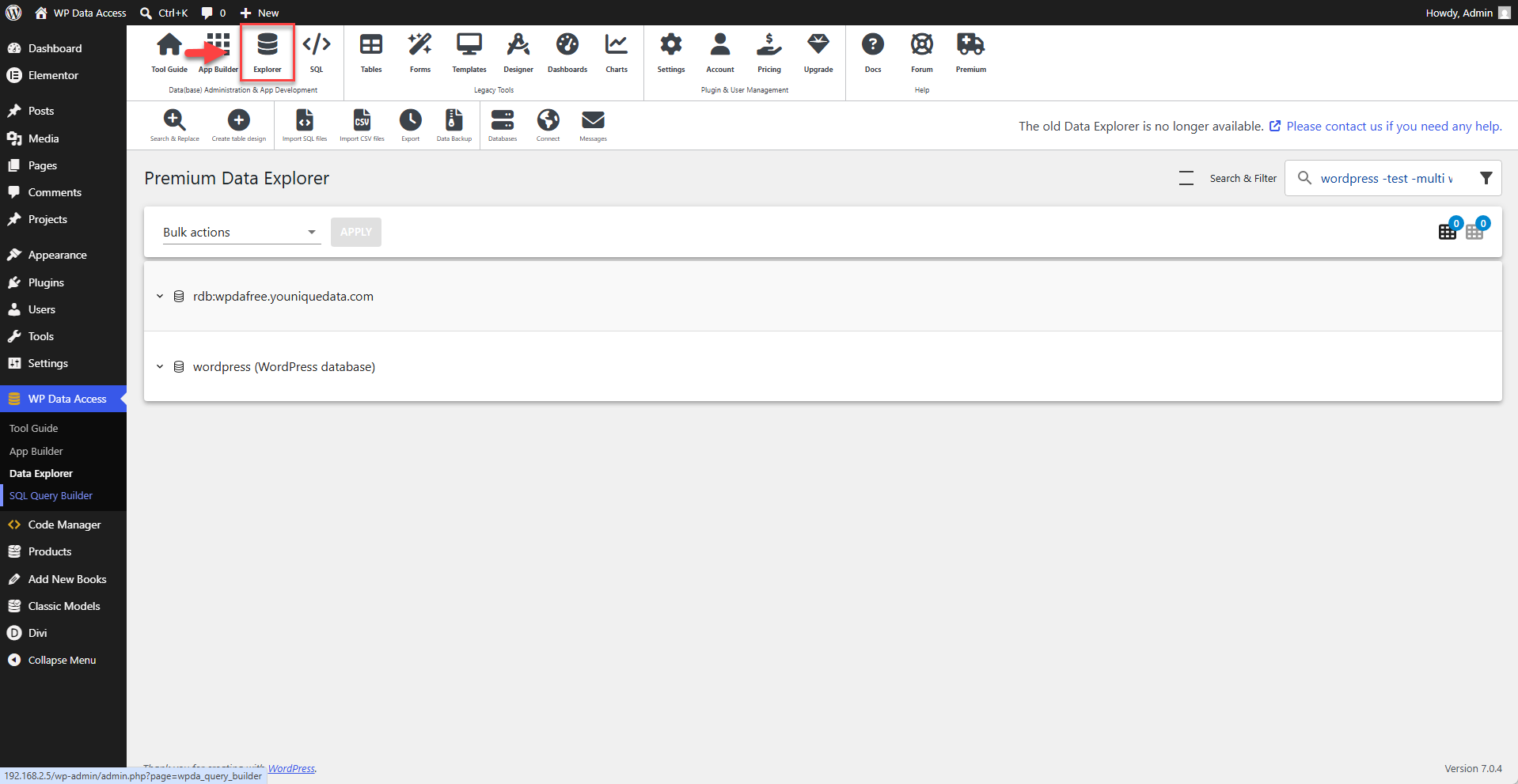
Click the explorer icon on the toolbar to launch the Data Explorer.
Use the icon to adjust the density.
Database Filters
Database Types
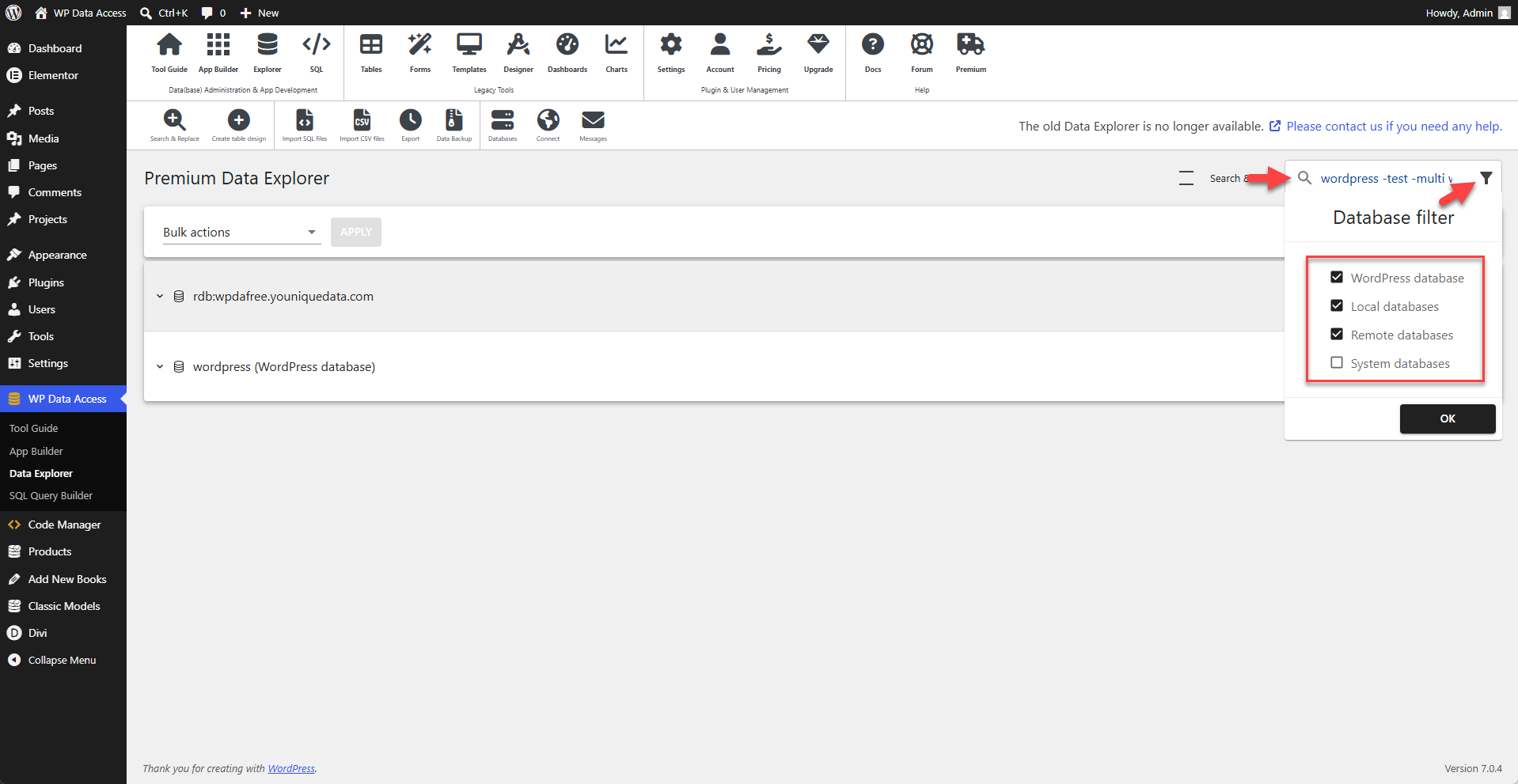
The filter icon in the upper-right corner of the Data Explorer allows administrators to filter database types. The available types are:
- WordPress database - displayed by default
- Local databases - displayed by default (not available if you are ISP hosted)
- Remote databases - displayed by default (learn how to add remote databases...)
- System databases - hidden by default
The screenshot below shows a WordPress database and a remote database. All remote databases in WP Data Access are prefixed with rdb:.
Database Names
The search box allows you to filter database names.
The screenshot below has the filter wordpress -test -multi wpdafree activated. This filter includes database names containing wordpress or wpdafree and excludes names containing test or multi.
📌 The search box supports multiple filter options (read more...).
Exploring Databases
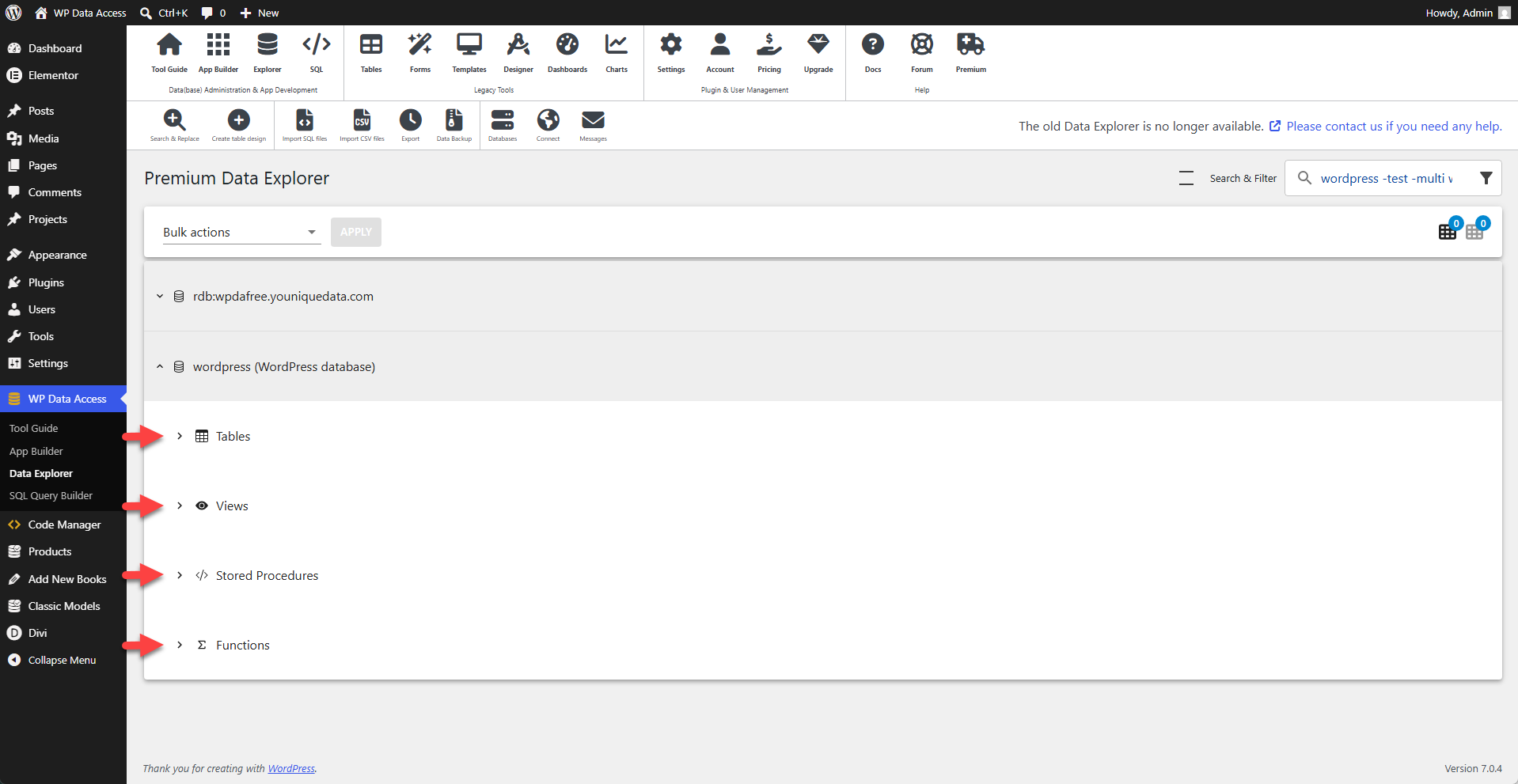
Clicking on a database opens the Database View. Each Database View contains the following nodes:
- Tables
- Views
- Stored Procedures
- Functions
Tables
The screenshot below shows the tables for a WordPress database.
- Pressing the icon button opens the Table Manager
- Pressing the icon button opens the Table Explorer
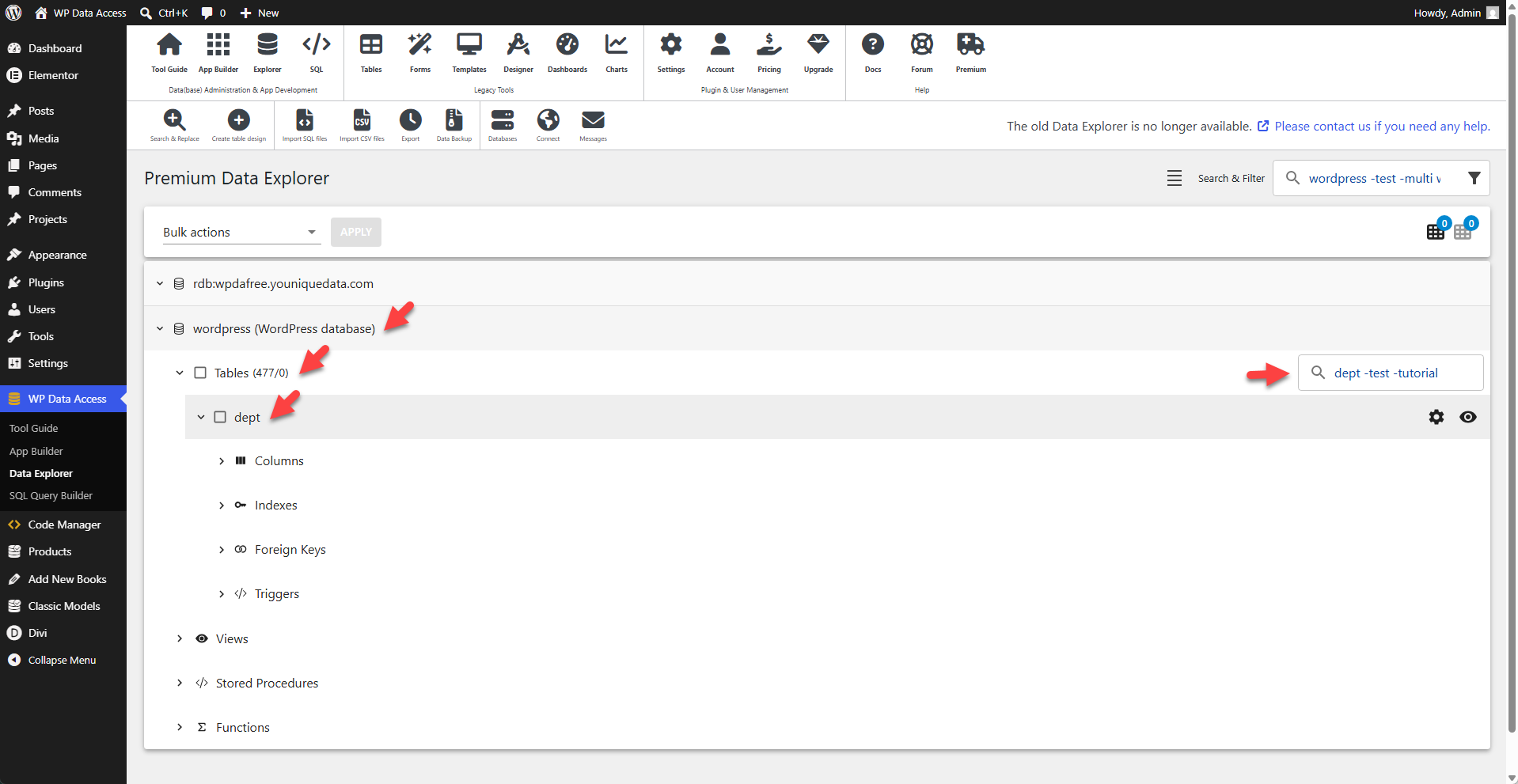
- The search box is used to filter tables (e.g.,
dept -test -tutorial).
📌 The search box supports multiple filter options (read more...).
Additional Table Information
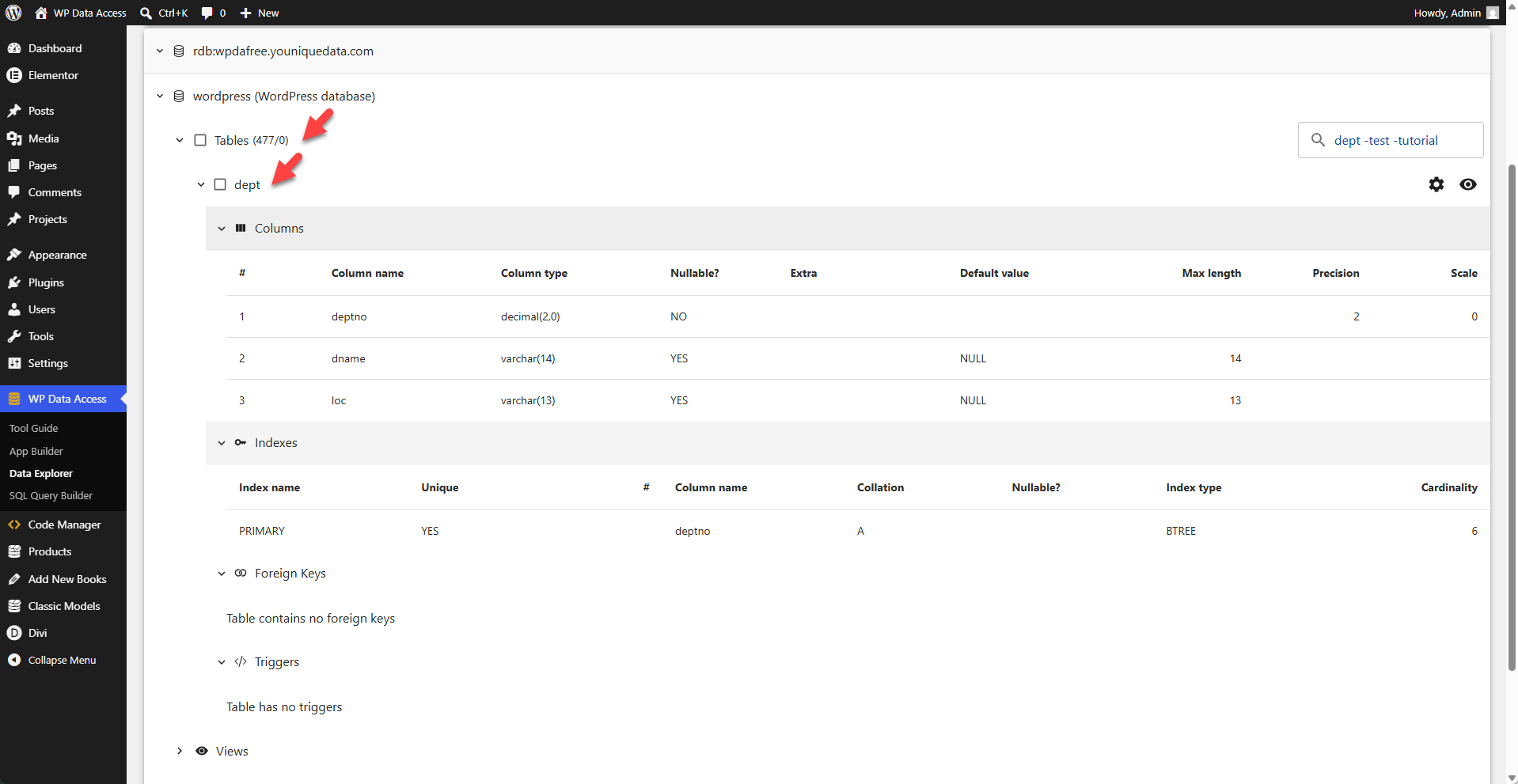
The Table View contains the following nodes:
- Columns
- Indexes
- Forign Keys
- Triggers
The screenshot below shows all the nodes for the dept table.
Views
The screenshot below shows the views for the WordPress database.
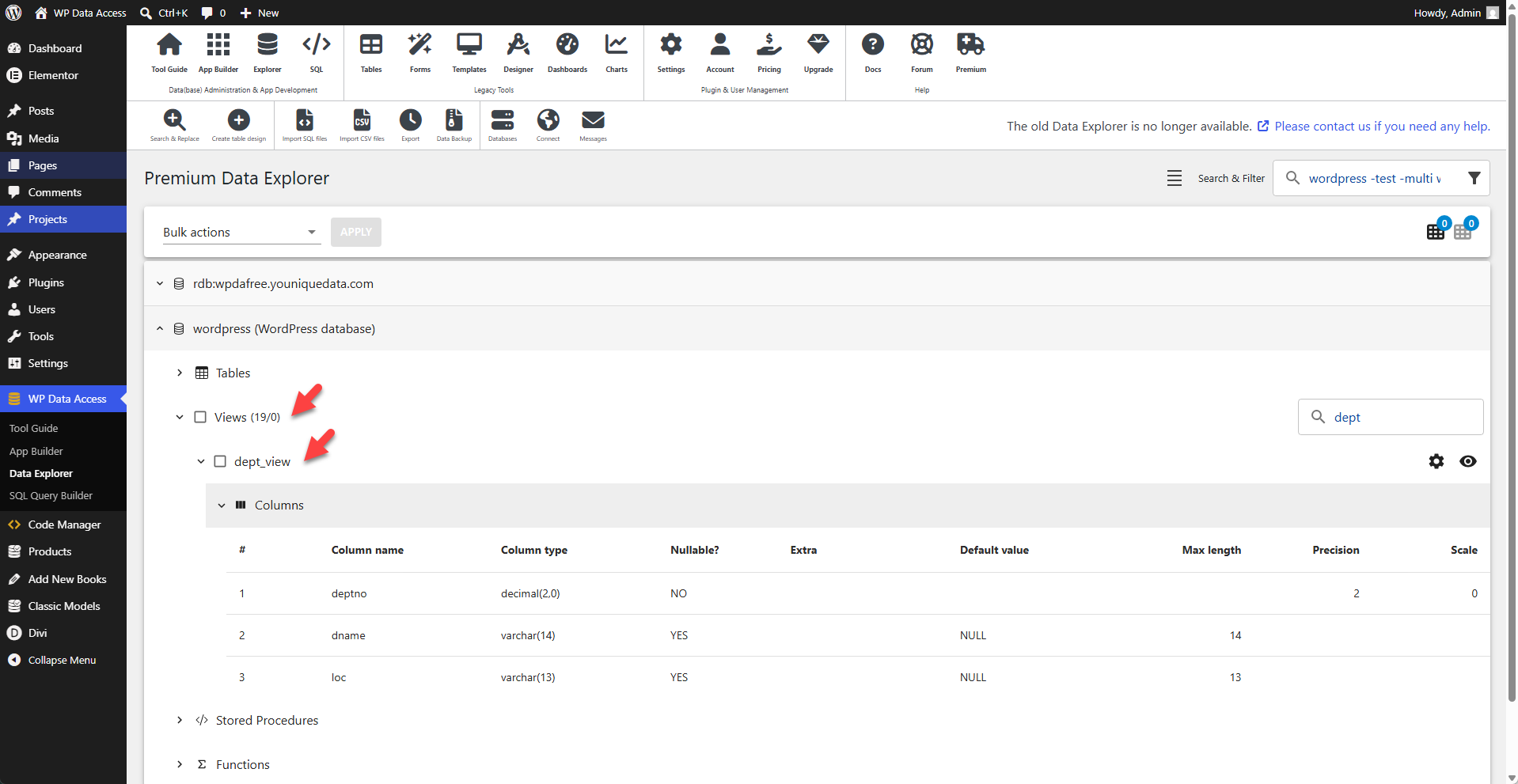
- The search box is used to filter views (e.g.,
dept). - The Columns node allows you to view the view's columns.
📌 The search box supports multiple filter options (read more...).
Stored Procedures
The screenshot below shows the stored procedures for the WordPress database.
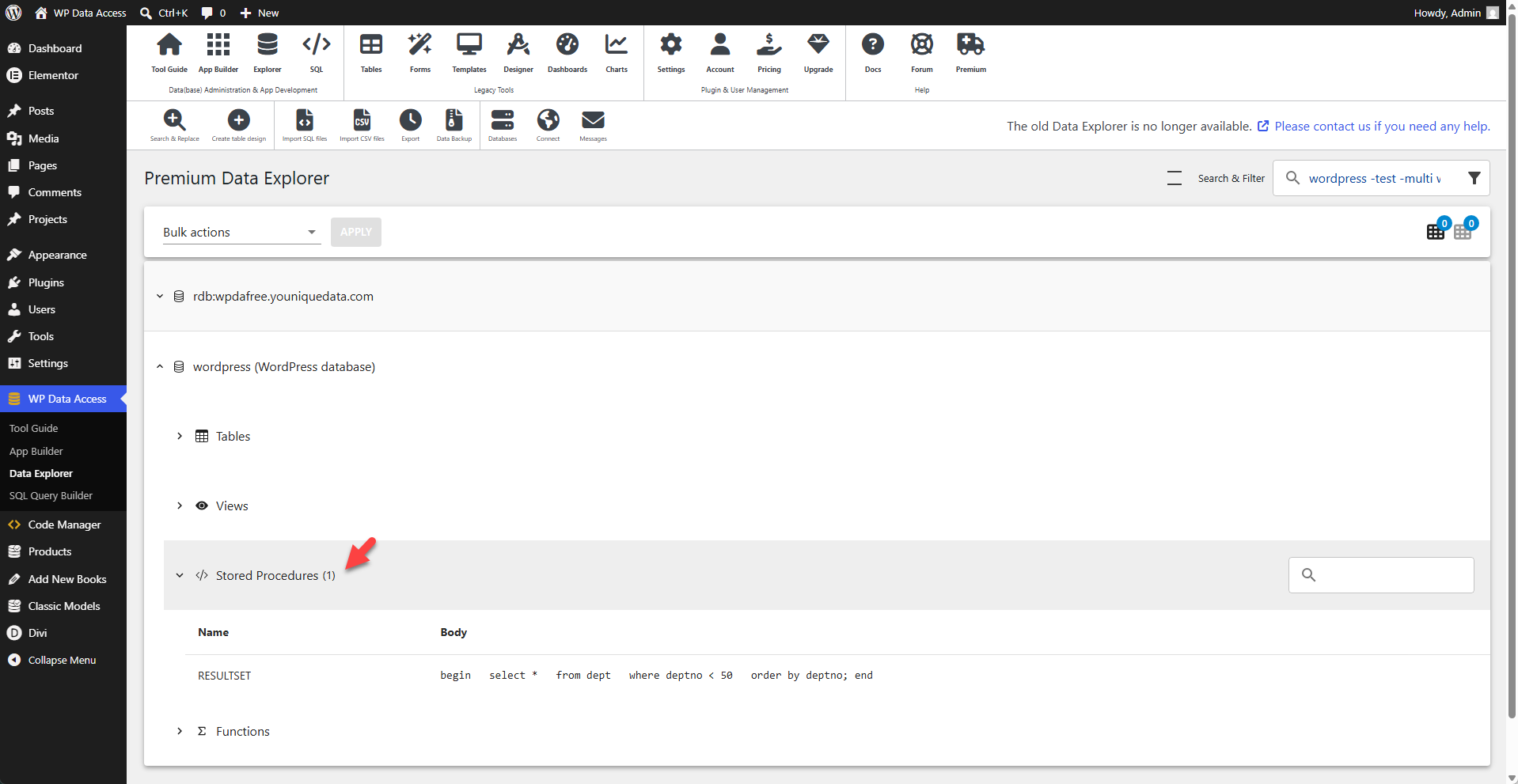
📌 Editing stored procedures directly from the Data Explorer is not supported.
Functions
The screenshot below shows the functions for the WordPress database.
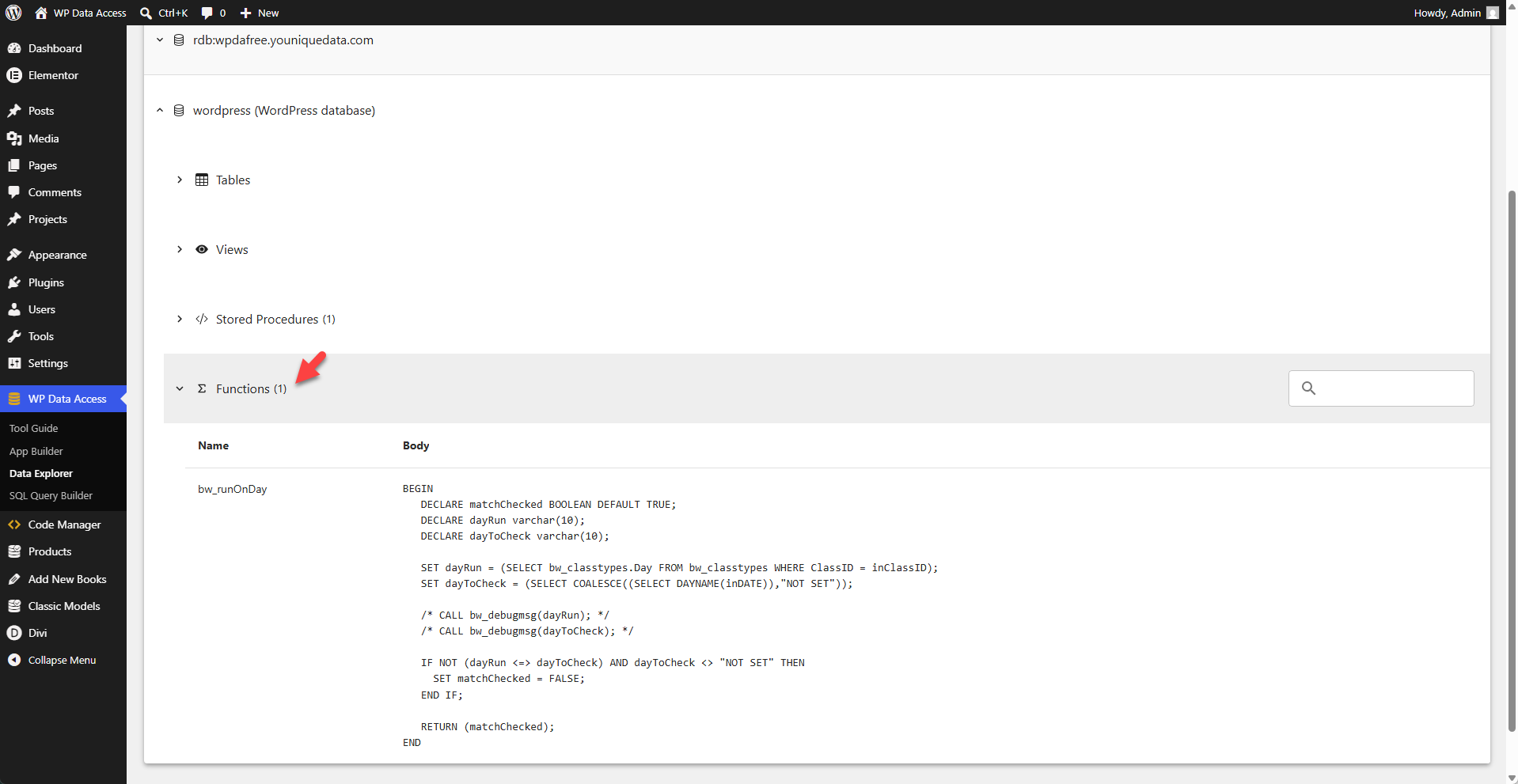
📌 Editing functions directly from the Data Explorer is not supported.
Bulk Actions
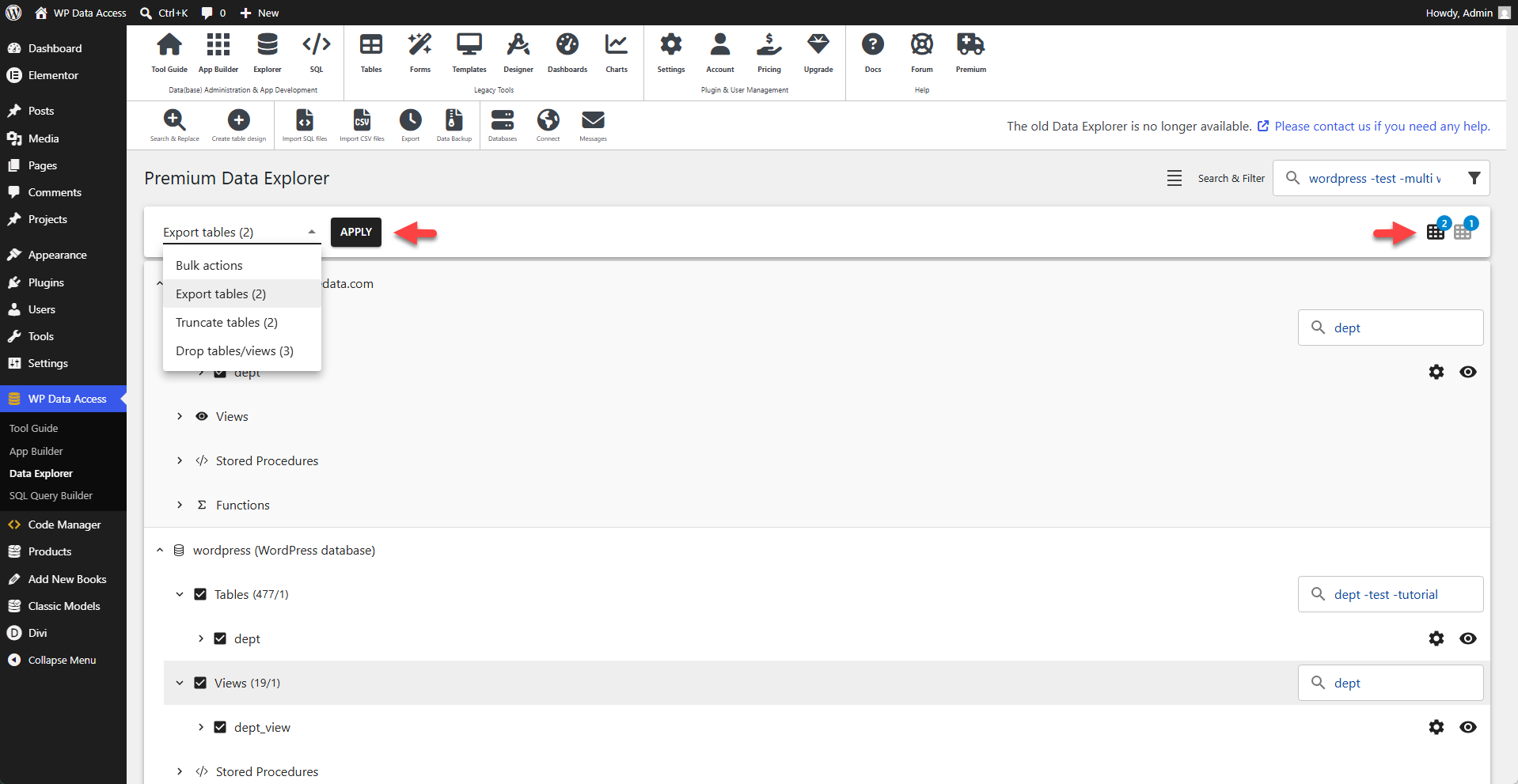
Bulk actions are available from the dropdown list in the upper-left corner of the page. The following bulk actions are supported:
- Export tables
- Truncate tables
- Drop tables/views
📌 Bulk actions can be performed simultaneously across multiple databases, tables, and views.
The screenshot below shows two tables and one view selected from two different databases. The number of selected tables and views is displayed on the badges in the upper-right corner. The bulk actions menu in the upper-left corner shows the available actions.
Using Name Filters
You can search for multiple values at once by typing them all into the search box. To exclude specific results, prefix any term with a minus sign (-). Exclusions take precedence over inclusions.
Examples
apple banana
Finds items containing apple or banana.
apple -banana
Finds items containing apple but not banana.
📌 Make sure there is no space between the minus sign (-) and the term you want to exclude.